Schedule a Transfer
To create a new store transfer, first select Schedule a Transfer
from the Store transfer menu.
Selecting the Items to Transfer
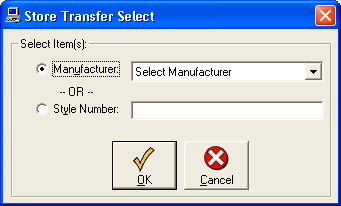
Select either:
- Style> - Enter a style number to transfer a single type of item.
- Manufacturer - Select a manufacturer to create a transfer for. This will
let you transfer multiple items from the same company under the same transfer
number.
Scheduling the Transfer
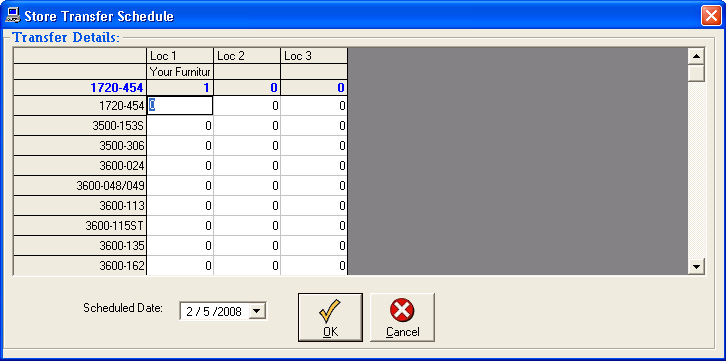
Once you have selected the items to transfer, you have to enter the quantities.
In the grid provided, simply click on the line with the style you want to transfer.
The current quantities will load at the top and you can enter positive and negative
numbers into the grid for each store. The numbers on each line should total to zero
or you will not be permitted to submit the form.
Saving the Transfer
When you have finished scheduling the transfer of all the items,
select a date for the transfer and click the
button to save the transfer.