Inventory Reports
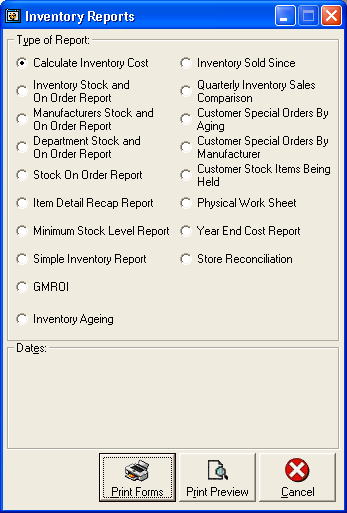 To print or view Inventory Reports, click Inventory: Reports: Inventory Reports.
There are 17Inventory Reports to choose from in this
section.
To print or view Inventory Reports, click Inventory: Reports: Inventory Reports.
There are 17Inventory Reports to choose from in this
section.
-
Calculate Inventory Cost
-
Enter the Report Date. A one-page "Landed Cost of Available Inventory by Department and Location" report itemizing each department's sales in each store, Total Stock, Total on Order, Inventory Available for Sale, Inventory Sold but not Delivered, SPECIAL-SPECIAL Received, and Total Inventory Cost.
-
Inventory Stock and On Order Report
-
Enter the Report Date. In the drop down
boxes, select if you want the report to print with cost on without cost.
In the second drop down, select if you want All Items including
items with No inventory or just Active Items with stock
available.
This report shows current stock levels, stock on
order and minimum stock levels at each location.
-
Manufacturers Stock and On Order Report
-
Enter the Report Date. Enter the Manufacturer in the
drop down box. In the drop down boxes, select if you want the report to
print with cost on without cost. In the second drop down, select
if you want All Items including items with No inventory or just
Active Items with stock available. You can also select all
stores or each individual store.
This report shows current stock levels, stock on
order and minimum stock levels at each location by Manufacturer.
-
Department Stock and On Order Report
-
Enter the Report Date. Enter the
Department in the drop down box. In the drop down boxes, select if
you want the report to print with cost on without cost. In the
second drop down, select if you want All Items including items
with No inventory or just Active Items with stock available.
You can also select all stores or each individual store.
This report shows current stock levels, stock on
order and minimum stock levels at each location.
-
Stock On Order Report
-
Enter the Report Date. Enter the Department
in the drop down box. In the drop down boxes, select if
you want the report to print with cost on without cost. In the
second drop down, select if you want All Items including items
with No inventory or just Active Items with stock available.
You can also select all stores or each individual store.
Enter the Report Date. This report shows any stock that has been ordered, but not come in yet.
-
Item Detail Recap Sheet
-
Enter the Report Date. This report
shows the difference between Purchases, Sales and Balance
-
Minimum Stock Level Report
-
Enter the Report Date. This report shows items that have been entered with minimum stock levels, and are at (or below) those levels.
-
Available Inventory Report
-
Select a manufacturer and print an Inventory Report for the sales staff
to use as a hard copy on Available Inventory
-
Inventory Sold Since
-
This report shows any stock that has been sold since the
Report
Date. Enter the Report Date.
-
Quarterly Inventory Sales Comparison
-
This report shows sales for items for each quarter.
-
Customer Special Orders by Ageing
-
This report shows Special Orders and Special Specials by Sale Number.
-
Customer Special Orders by Manufacturer
-
This report shows Special Orders and Special Specials by Manufacturer.
-
Customer Stock Items Being Held
-
This report shows items on hold for customers by Sale Number.
-
Physical Worksheet
-
Use this to take a physical inventory. If the By Vendor checkbox is checked, enter a manufacturer
in the drop down box to show items for only that manufacturer.
-
Year End Cost Report
-
This is a item by item summary of the cost of
Inventory for your Physical Inventory Report.
-
Store Reconciliation
-
This will generate the Store Reconciliation report for your store.
-
GMROI
-
This will calculate the Gross Margin Return on Inventory (GMROI) for the given items over the specified date range.
Choose either Print or Print Preview.
Print (default) will print the report on the default printer, Print Preview will show the report on screen.
For help with the Print Preview function, see the Print Preview help page.