Make Packages
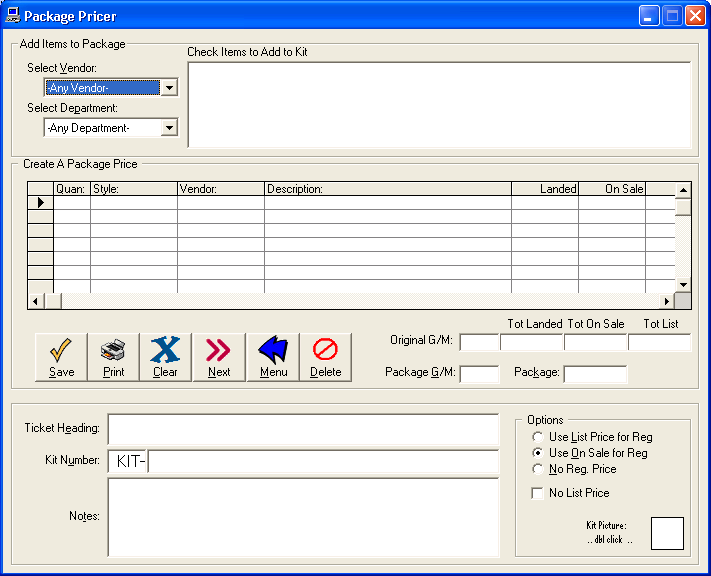
To create a price tag for a group of items, even from
multiple manufacturers, click Inventory: Reports:
Package Ticket Builder. A Package Builder form will appear.
Select a Manufacturer
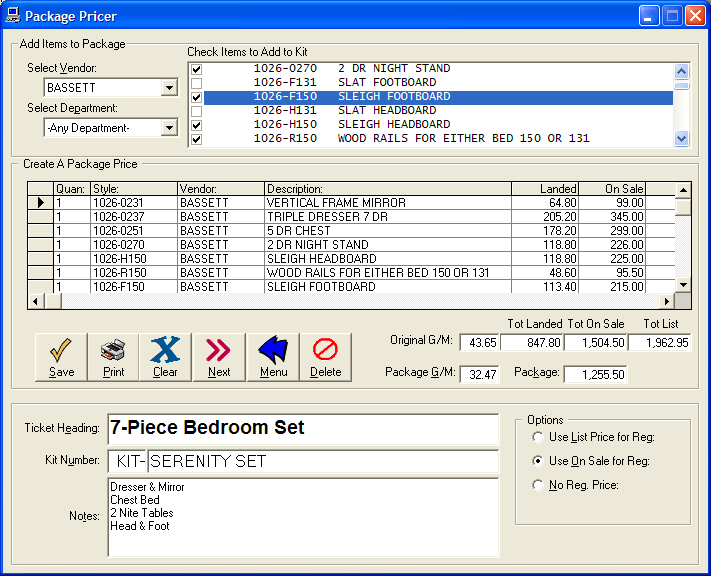
Start in the upper left corner and select the manufacturer in the drop down.
All the items this manufacture has in the database will appear on the screen.
Find the items you want on a package tag and check the check box for each item.
Each item will appear in the list below. If you have to change the
quantity, click into the quantity column and change the quantity.
TIP: Be sure to Tab off the quantity column to recalculate the prices.
As you are building the items for the package, the prices are
recalculating on the screen. They exactly add up the same prices that
would be on the individual price tags. Also, the Gross Margin on the
package is show.
Note: You can also select another manufacturer for the drop down to make complete packages from different manufacturers.
Special Pricing
If you want to give a Special Price for buying the package,
either change the Gross Margin figure and Tab off it to recalculate or change
the On Sale Price to you desired Package Price. The Gross Margin, will
recalculate accordingly.
Ticket Heading and KIT- Number
The next step would be to make the Ticket Heading as indicated.
A heading would be something like "7 Pc Bedroom Set", for example.
In the next field Kit number, you enter the style number for the kit. It should be
alphanumeric like "1000" or "Serenity Set". The software automatically add the
Kit- in from of the style number.
TIP: To access the kit on a sale you would enter "KIT-1000" or "KIT-Serenity Set".
Description and Notes
The Notes on Tickets is your description of what's included in the kit. You can enter, for
example, Dresser, Mirror Chest & Bed.
Be advised that the individual style numbers do not show up on the price tags. So, if you need them them on the tag,
you can Cut and Past them onto the Notes. You can enter:
Dresser 2074-237
Chest 2074-251
Package Price
The only thing left to do is decide which prices besides the package price do you want printed on the tags.
You can choose to use the List Price or the On Sale price as the Regular Price or, use No
List Price at all.
Saving your Package
Finally, click Save and then Print
the tags. If you want to make more tags, click Next or
Menu to quit.
The Clear button will clear the tag
incase you want to start over. Use Delete to delete the kit
completely.